Overview
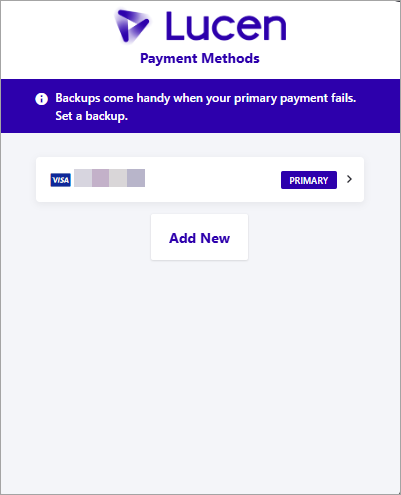
In Account Center, you choose how to pay at checkout and manage the cards saved to your account. You can use a saved card or a new one at checkout, keep a card on file for future renewals, update the card on file, and add a backup card that is used if your primary payment fails. Payment methods are managed by Billing Owners.
Use the links below to jump to the task you need.
A) Choose your payment method at checkout
B) Open your saved payment methods
A) Choose your payment method at checkout
Step 1: Select a payment method
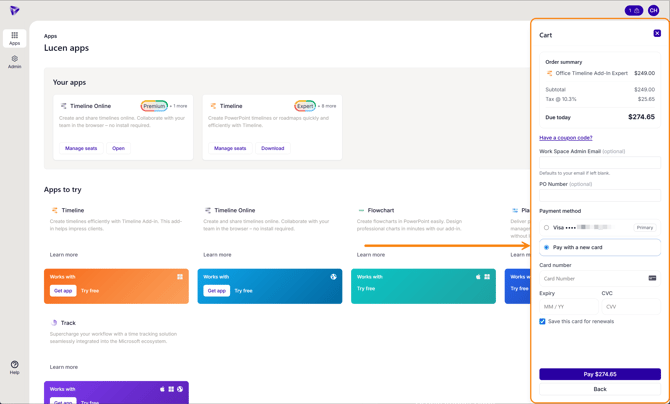
At the Payment method step of checkout, select your Primary card, or choose Pay with a new card.
Step 2: Enter and save a new card
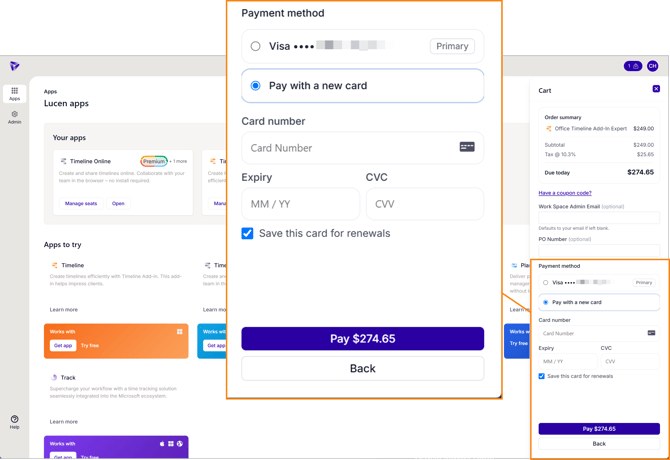
If you pay with a new card, enter your Card number, Expiry, and CVC. To keep the card on file for future renewals, select Save this card for renewals. If you leave it unselected, the card is used for this purchase only.
Step 3: Complete your order
Click Pay to complete your order.
B) Update your saved payment method
Step 1: Go to your payment methods
Sign in to the Account Center at lucensoftware.com with your Billing Owner credentials. From the left menu, go to Admin, then Billing Settings. This opens the Organization settings page. Select Payment method.
Step 2: Open the Payment Methods window
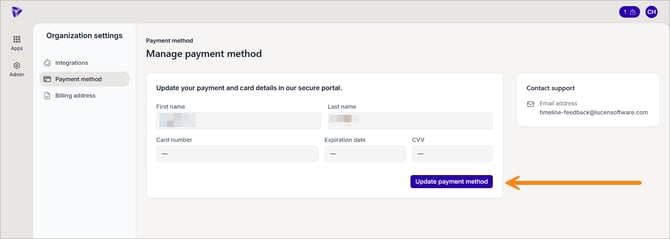
On the Manage payment method page, click Update payment method to open the Payment Methods window.
Step 2: Add a card
Your current card is labeled Primary. To add another card, click Add New and enter the card details. A backup card is used automatically if your primary payment fails.