
Symptoms
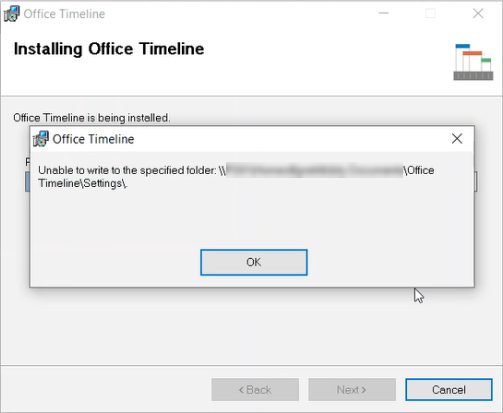
When trying to install or update the Office Timeline Add-in, the installation fails and you get an error message that says “Unable to write to the specified folder”:
Overview
This issue can occur when the user’s %AppData% folder is redirected to a shared or restricted location. Office Timeline needs to write certain files to the user profile during installation. If write access is blocked, the installation may fail with an “Unable to write to the specified folder” error.
Solution
1. Verify folder permissions
Ensure that the user has read/write access to their %AppData% folder. If the folder is redirected, confirm that the network location allows file creation and modification.
2. Check for folder redirection policies
If your organization uses folder redirection, ensure that policies do not block applications from writing to the redirected location.
3. Install in user context
Make sure Office Timeline is installed in the user context, not the system context, so that it can correctly access the user profile.
4. Try installation again
Download and install the latest version of Office Timeline:
https://www.officetimeline.com/updates
5. Contact IT or support if the issue persists
If installation still fails, your IT team may need to adjust folder permissions or redirection policies.