
This article is for Billing Owners, the person who purchased an Timeline subscription directly, or had it purchased on their behalf through a reseller.
The Account Center allows Billing Owners to designate a Workspace Admin at the time of purchase, or reassign that role to someone else at any time. This guide covers both scenarios.
A) Designating a Workspace Admin at checkoutB) Changing the Workspace Admin after purchase
A) Designating a Workspace Admin at Checkout
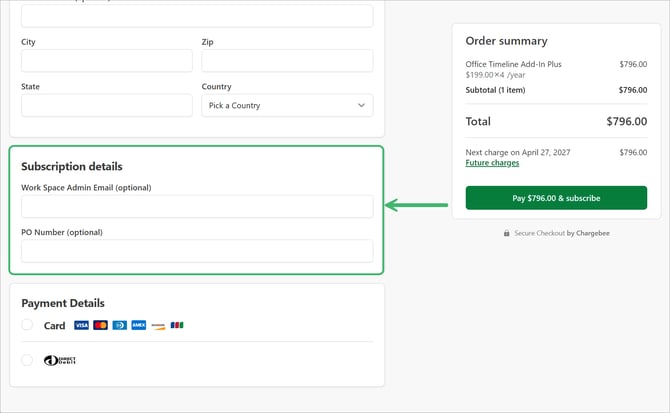
During checkout, you can designate someone else to manage licenses by filling in the optional field "Workspace Admin" and entering their email address. After purchase is complete, the designated Workspace Admin receives an email notification with license administration instructions.
B) Changing the Workspace Admin after purchase
To change the Workspace Admin for an existing subscription:
-
Sign in to your account at lucensoftware.com and go to Admin > Subscriptions.
-
Select the subscription you want to update.
-
On the Details tab, find the License info section.
-
Next to Workspace admin, click Edit.
-
Enter the email address of the new Workspace Admin and save your changes.
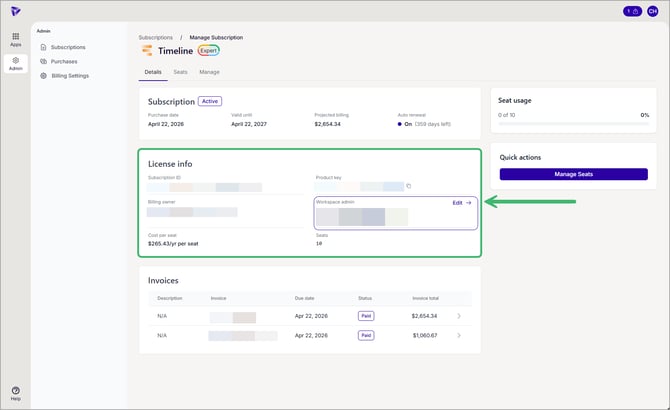
The new Workspace Admin will receive an email notification with license administration instructions. The previous Workspace Admin will also be notified that their role has been reassigned.
A Workspace Admin can only change their own account email address one time. This restriction is in place to prevent fraud. If a Workspace Admin needs to update their email after that one-time change, contact support.