Overview
Before signing in or activating Timeline, it’s important to confirm that the add-in is installed and that you’re using the latest version.
Live Training!
Join us of one of our live training sessions!
Quick Start – A focused walkthrough of the key features you need to begin creating timelines and Gantt charts right away.
Best Practices – Designed for experienced users. Join a live session to see an in-depth demonstration and get answers to questions specific to your organization.
Register now: Quick Start | Best Practices
In this article:
A) Check if Timeline is installed
B) Check which version you are using
C) How do I know if I need an update?
A) Check if Timeline is installed
-
Open PowerPoint.
-
Look for the Timeline tab in the PowerPoint ribbon.
-
If you see the Timeline tab, the add-in is installed.
-
If you don’t see it, Timeline is not installed on your machine.
-
If Timeline isn’t installed, download and install the latest version from the Timeline website.

B) Check which version you are using
-
In PowerPoint, go to the Timeline tab.
-
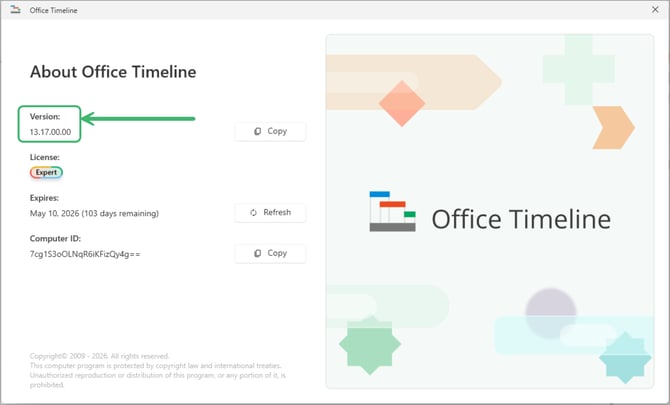
Click Help → About (or About Timeline).
-
Review the version number shown in the dialog.
To ensure compatibility with login-based activation, make sure you’re running the latest version available. If your version is outdated, download and install the current release to avoid sign-in or activation issues.
C) How do I know if I need an update?
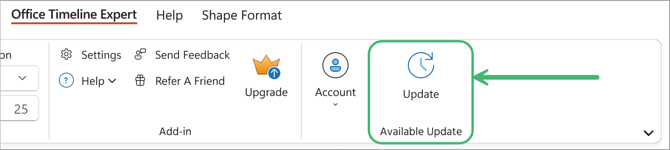
When updates are available, an Update button will appear in your Timeline tab.
Timeline can check for and install updates in app, or you can download them from our website.
The in app Update option is available in Timeline version 13.25.01 and higher.
Some organizations require administrator permission to install software. You may still see the Update button even if you don’t have permission to install updates on your device. If you need to update, please contact your system administrator.
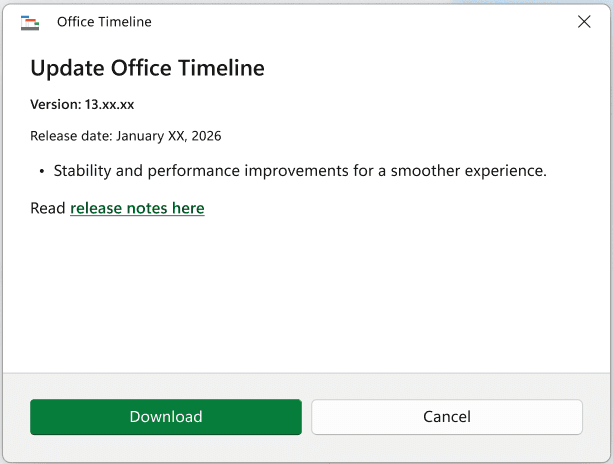
Clicking the Update button opens a modal dialog showing:
-
The new version number
-
Release notes, visible directly in the modal
-
A link to full release notes that opens in the browser
Download and install
-
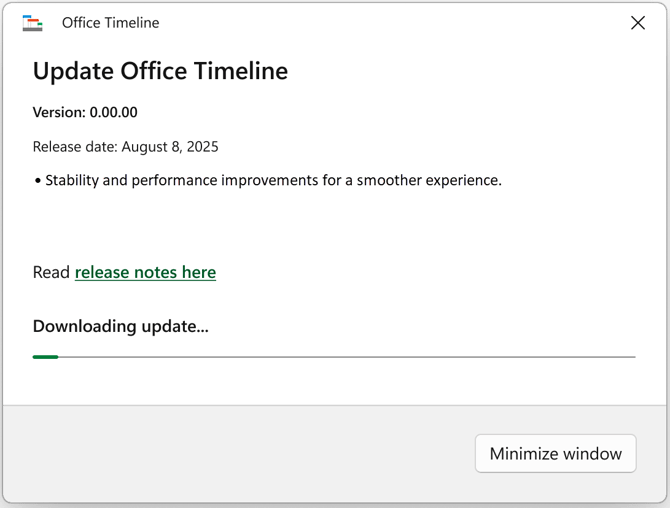
When the user starts the download, a progress modal appears.
-
The modal can be minimized, allowing users to keep working.
-
When minimized, progress is shown in the style pane, with an expand option.
-
-
Once the download completes, the installer launches automatically, and the user proceeds with the standard install steps.