
Overview
Live Training!
Join us of one of our live training sessions!
Quick Start – A focused walkthrough of the key features you need to begin creating timelines and Gantt charts right away.
Best Practices – Designed for experienced users. Join a live session to see an in-depth demonstration and get answers to questions specific to your organization.
Register now: Quick Start | Best Practices
This article explains how to activate the Timeline Add-in using your Timeline account. Timeline is activated using Login with Email. There is no product key to enter. Log in with the email address your license was assigned to and you're ready to go.
Log in to your Timeline account to activate your Lite, Plus, or Expert subscription and unlock your premium features.
To help avoid activation delays, confirm the following before getting started:
- You are using Timeline v13.01.00.00 or newer
- You are logging in with the exact email address your license was assigned to
- You have been assigned a license
Most activation questions are resolved by checking these three items first. See the Account Activation Troubleshooting Guide if you need additional help.
Use this guide to find the section that applies to your role.
A) Understanding User Roles
B) Confirm Your Add-in Version
C) Confirm Your Credentials
D) Activation Steps for Individual Users
E) Activation for Multi-User Accounts
F) Accepting a License Invite
A) Understanding User Roles
End User: Logs in with the email the license was assigned to and completes activation in PowerPoint.
Workspace Admin: Assigns licenses and manages who has access. Can confirm which email a license was assigned to and resend an invitation if needed.
Billing Owner: Oversees subscription and billing details. In some organizations, this person also assigns licenses. In others, billing and license management are handled separately.
Reseller: Places orders for Timeline subscriptions on behalf of clients.
IT Team: May manage software updates or approve Microsoft login based on company security settings.
If you are unsure which role applies to you, connect with the person who handles licenses, billing, or software updates for your team. You can also contact support@lucensoftware.com and we will help guide you to the right next step. Learn more about user roles in the Timeline subscriptio726A86 n roles and permissions article.
B) Confirm Your Version
Login with Email works on Timeline version 13.01.00.00 or newer. Learn more about how to check your version in the how-to-check-if--timeline-is-installed-and-activated article.
This applies to both:
- Existing users who already have Timeline installed
- New users installing Timeline for the first time
If you are an existing user
If you previously used a product key, you will be asked to log in after updating. Log in with your assigned work email and your access will apply automatically.
If you are a new user
If this is your first time installing Timeline, you will activate by signing in with the email address your license was assigned to.
If your organization manages updates
In many organizations, software updates are handled by IT. If you are not on v13.01.00.00 or newer, you may not be able to complete activation until your IT team rolls out the updated version.
If you are blocked from updating, ask your IT team to install or update to Timeline v13.01.00.00 or newer.
C) Confirm Your Credentials
Your Timeline subscription is linked to a specific email address.
-
To log in successfully, use the exact email address assigned to you by your Workspace Admin. This is the most common reason login does not work.
-
Logging in with an alias instead of the assigned email can prevent access to your paid license.
Example
Assigned to: firstname.lastname@company.com
Logged in with: flastname@company.com
Even if both emails reach the same inbox, they are treated as different email addresses.
D) Activation Steps for Individual Users
If you're activating Timeline for yourself, log in to your account from the add-in. Once logged in, your subscription automatically activates and unlocks your premium features.
Step 1: Open Timeline to Log In
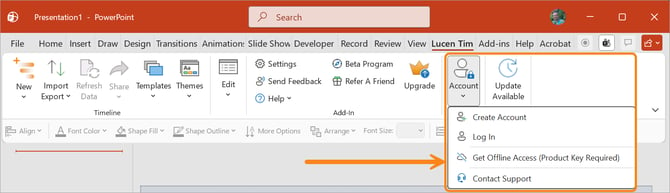
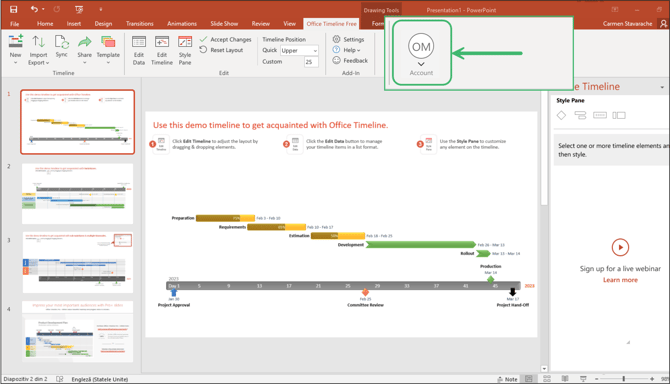
If Timeline is already installed, open PowerPoint, go to the Timeline tab on the ribbon, and select Account to log in.
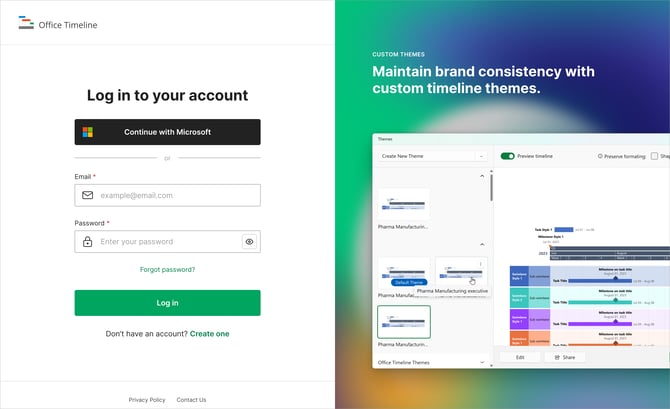
Step 2: Enter Your Timeline Account Credentials
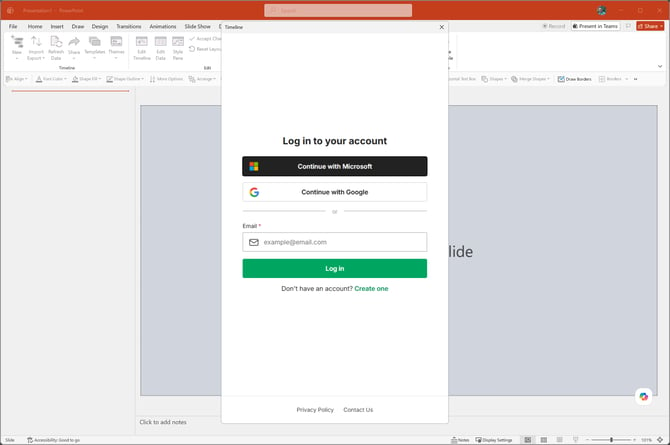
When prompted, enter the email and password associated with your Timeline account.
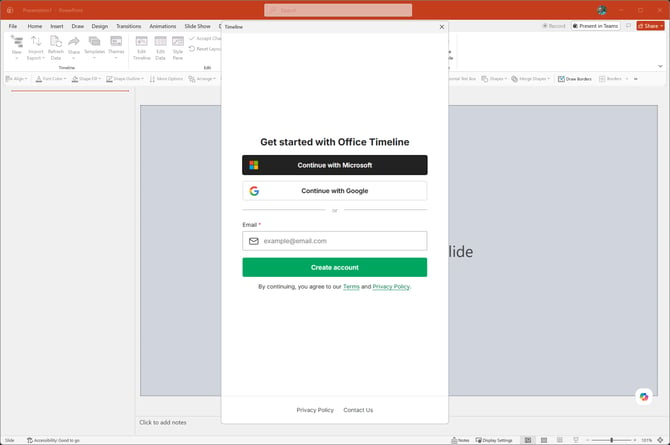
If you don't have an account yet, select the Create Account option to register.
Step 3: Confirm Your Email Address
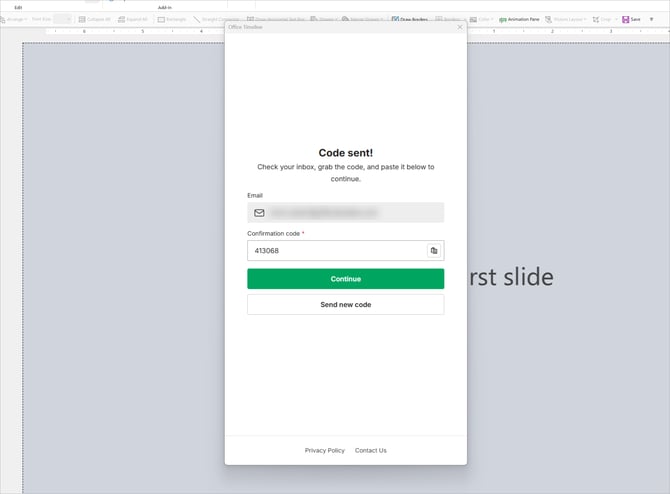
If you are creating your account for the first time, you will be prompted to confirm your email address with a code.
Click Send Code. Check your email for the code. Enter the code to verify your email address and complete login.
Step 4: Confirm Activation and Begin Creating Timelines
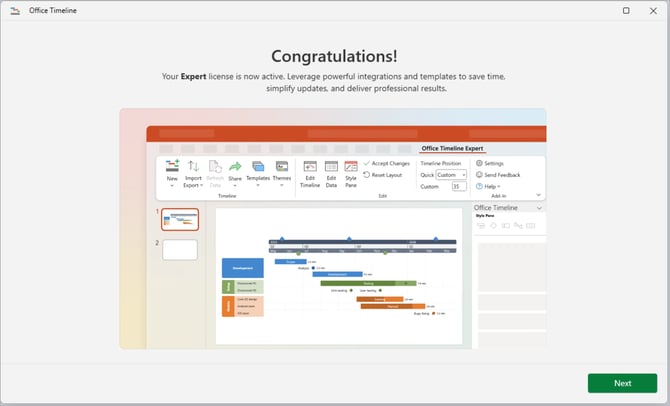
After logging in, Timeline will automatically verify your subscription and unlock your Lite, Plus, or Expert features.
E) Activation for Multi-User Accounts
For teams with shared subscriptions, license management is handled in the Account Center. Workspace Admins assign licenses to users, and each user activates their subscription by logging in through the Timeline add-in.
Workspace Admins
Step 1: Log In to the Account Center
Visit lucensoftware.com and log in using your Workspace Admin or Billing Owner credentials.
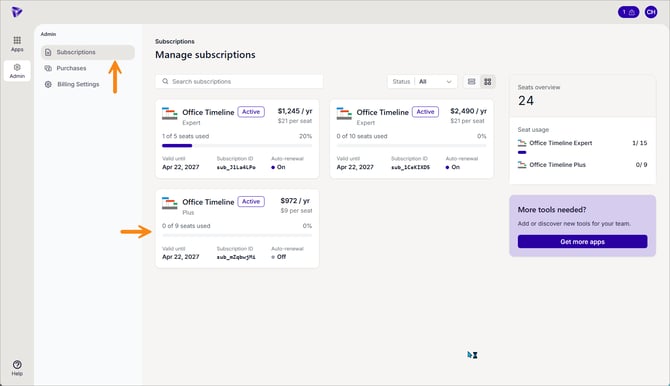
In the left navigation, go to Admin > Subscriptions and select the subscription you want to manage.
Step 2: Assign Licenses to Users
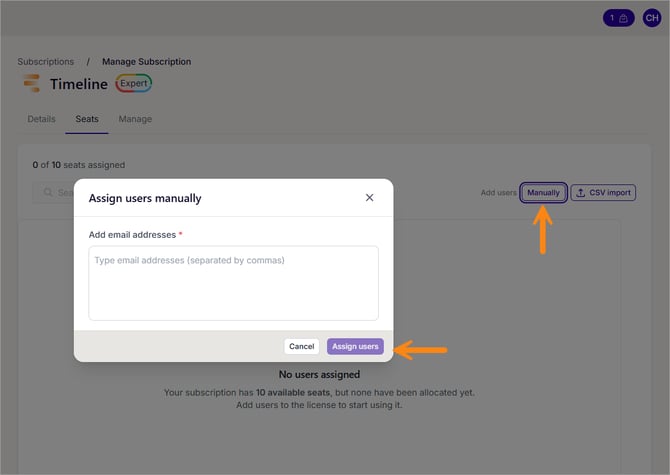
Go to the Seats tab. Click Manually to open the Assign users manually modal. Enter a user's email address and click Assign users.
You can view and manage assigned users from this tab, including their name, activation status, and last active date.
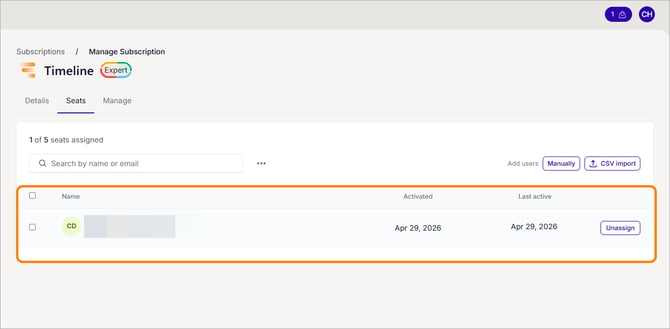
To import users in bulk, use the CSV import option on the same tab.
Step 3: Unassign or Reassign Licenses
To free up a license, find the user in the Seats tab and click Unassign.
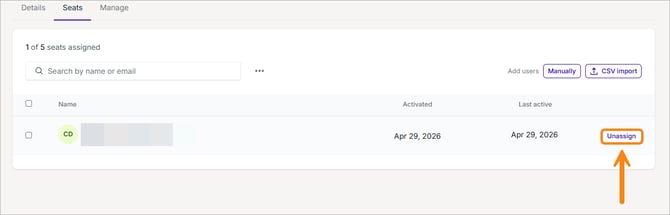
You can then assign that license to another user from the same page. You can also resend the invitation email from this view.
F) Accepting a License Invite
Step 1: Accept Your License
You'll receive an email invitation from Timeline.
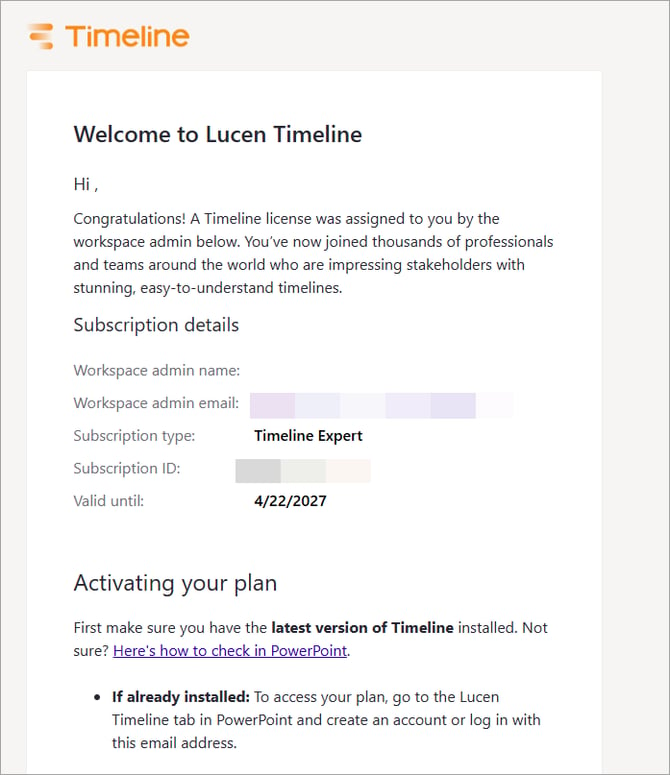
Step 2: Activate from the Add-in
Open PowerPoint, navigate to the Timeline tab, and click Log In. Use the same email address your admin assigned to you.
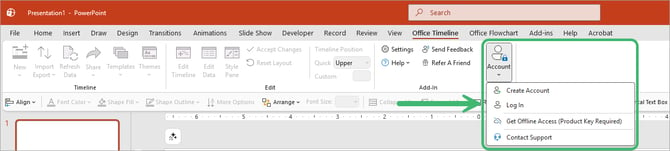
If you don't yet have an account, click Create Account and follow the prompts.